How to Find Saved Reels on Facebook
How to find saved Reels on Facebook depends on which app you are using: on mobile, open Menu → Saved; on desktop, open Saved from the left sidebar under your profile menu. Facebook stores bookmarked Reels alongside other saved posts in one library, but Saved on Facebook and Saved on Instagram are completely separate.
This guide walks through every path to your saved list, how Collections work, why some Reels disappear, and tips if you manage a Page for business content.

Quick Answer: Where Saved Reels Live
| Device | Path |
|---|---|
| Facebook app (iOS/Android) | Menu (≡) → Saved |
| Facebook desktop | Profile/Menu → Saved (left sidebar) |
| To save a Reel | Tap bookmark icon or ⋮ → Save post |
If Menu layout changed after an update, search "Saved" in the Menu search bar, Meta moves items between releases.
Find Saved Reels on the Facebook Mobile App
Standard path (2026)
- Open the Facebook app.
- Tap Menu (three lines, bottom-right on many layouts, top-right on others).
- Scroll to Saved and tap it.
- Browse your saved Reels, videos, photos, and links in one feed.
Alternate shortcuts
- Your shortcuts section on Menu may pin Saved, long-press to reorder.
- Use Menu search and type "Saved" if the list is long.
- On some versions: You tab → Saved under profile tools.
Saved items appear in reverse chronological order by default (most recently saved first).
Find Saved Reels on Facebook Desktop
- Go to facebook.com and log in.
- Click your profile picture or Menu (top-right).
- Click Saved in the left sidebar, expand See more if it is collapsed.
- View saved Reels in grid or list layout.
Desktop is useful when you want to open saved recipe or tutorial Reels on a larger screen while working.
How Saving Reels Works
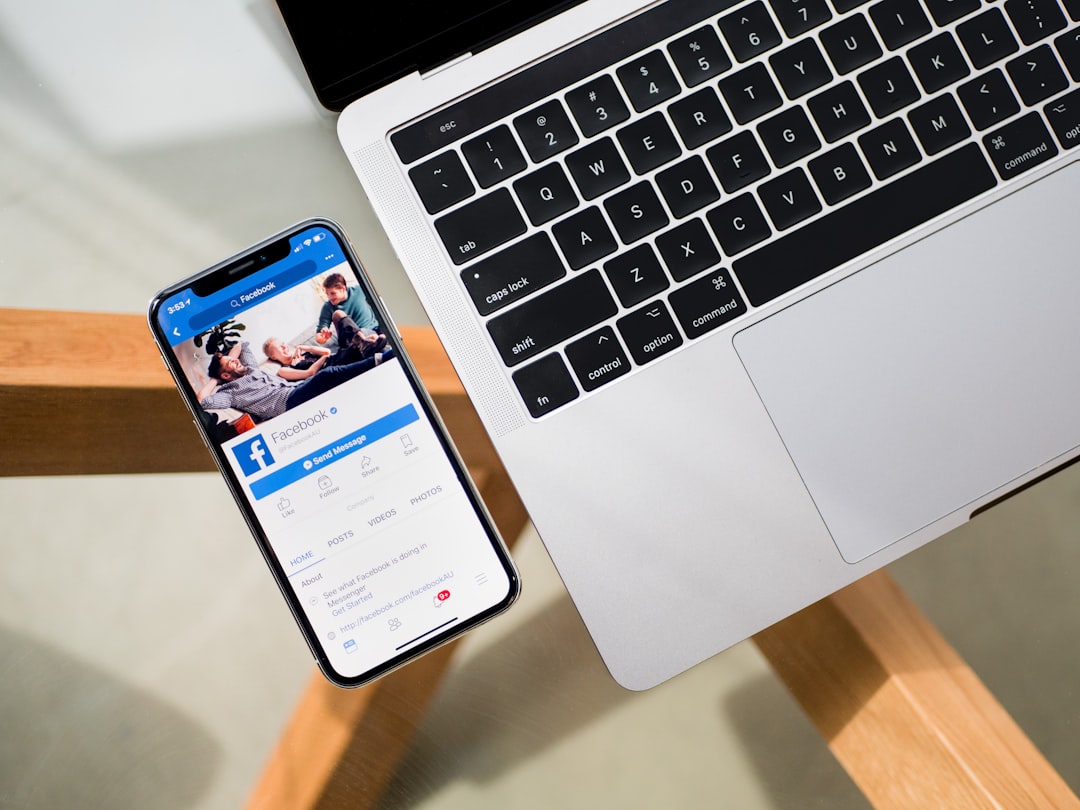
Save a Reel
While watching a Reel:
- Tap the bookmark (ribbon) icon, or
- Tap ⋯ (three dots) → Save post / Save video
A filled bookmark means the item is in your Saved library.
What gets saved together
Facebook puts these in the same Saved area:
- Reels and long videos
- Photos and albums
- Article links and external URLs
- Some Marketplace listings (when save is offered)
Reels do not get a separate "Reels only" folder unless you create a Collection.
Organize Saved Items With Collections
Collections are folders inside Saved, useful when you hoard inspiration Reels.
Create a collection
- Go to Saved.
- Tap Create collection or New collection.
- Name it (examples: "Reels to watch," "Ad inspiration," "Recipes").
- Add saved posts from the collection view or while saving.
Save directly into a collection
When saving a Reel:
- Tap Save.
- Choose Save to collection.
- Pick an existing collection or create a new one.
Creators and social managers often keep a swipe file collection for hooks and formats, pair with hook generator and content ideas when turning inspiration into original posts.
Facebook Saved vs. Instagram Saved
| Facebook Saved | Instagram Saved | |
|---|---|---|
| Stores | Items saved on Facebook | Items saved on Instagram |
| Cross-sync | No | No |
| Reels | Facebook Reels | Instagram Reels |
A Reel saved on Instagram will not appear in Facebook Saved. Check the correct app before panicking.
For Instagram-specific saving: save Instagram Reels respectfully.
Why Some Saved Reels Might Not Show Up
1. Post deleted or account private
If the creator deleted the Reel or restricted their account, playback from Saved may fail with "Content unavailable."
2. Wrong section (Watch vs. Saved)
Watch and Video tabs are algorithmic feeds, not your bookmarks. Confirm you opened Saved, not Watch.
3. App or cache issues
- Update the Facebook app to the latest version.
- Clear cache: phone Settings → Apps → Facebook → Clear cache (Android) or reinstall on iOS if broken.
- Log out and back in if Saved looks empty after an update.
4. Account switcher
If you use multiple Facebook profiles, Saved is per account. Confirm you are on the profile that saved the Reel.
Tips for Creators and Page Admins
Saving competitor Reels for research is common, turn insights into original content, not reuploads. For publishing workflow:
Running a Page? Moderate comments separately, control Facebook Page review comments · comment moderation guide.
Using Saved Reels for Content Inspiration (Ethically)
Creators and social managers often save competitor or peer Reels as swipe file references, not for reuploading. When you find a format worth adapting:
- Note the hook structure (question, bold claim, visual pattern interrupt).
- Identify the pillar it maps to on your brand, content pillars guide.
- Draft an original script with hook generator.
- Schedule your version via how to schedule Facebook posts or cross-post with repurpose guide.
Never download and repost someone else's Reel without permission, that violates copyright and platform policies.
Facebook Reels vs. Instagram Reels: Saved Libraries
Both Meta apps have separate Saved sections. If you primarily consume content on Instagram but publish on Facebook Pages, save inspiration in the app where you will actually reference it during batch day, or export notes to a Notion doc with links.
Frequently Asked Questions
Is there a limit to how many Reels I can save?
Facebook does not publish a strict limit, but very large collections can load slowly. Use Collections to stay organized.
Can I share a saved Reel with someone?
Yes. Open the saved Reel, tap Share, and send via Messenger, post, or copy link. Sharing points to the original post, not your private saved copy.
Do saved Reels take up phone storage?
No. Saved items live on Facebook's servers unless you explicitly download the video to your device.
Can I unsave a Reel?
Yes. Open it from Saved and tap the bookmark again, or use ⋮ → Remove from Saved.
Why do some saved Reels show "Content unavailable"?
The creator may have deleted the post, changed privacy settings, or blocked your account. Unavailable items may disappear from Saved over time.
Can I download saved Reels to repost them?
Only if you have rights to the content. Reposting others' Reels without permission violates copyright and platform rules. Use saved Reels as inspiration for your own originals.
Quick reference: Mobile Menu → Saved · Desktop Saved in sidebar · Bookmark to save · Collections to organize.
Plan and schedule your own Reels · Pricing · Social media scheduler
More to read: Control Facebook Page Comments · Comment Moderation Guide · Free Content Calendar · How Long for a Reel to Go Viral